
Masking in Lightroom Mobile: The One Huge Trick Most People Miss
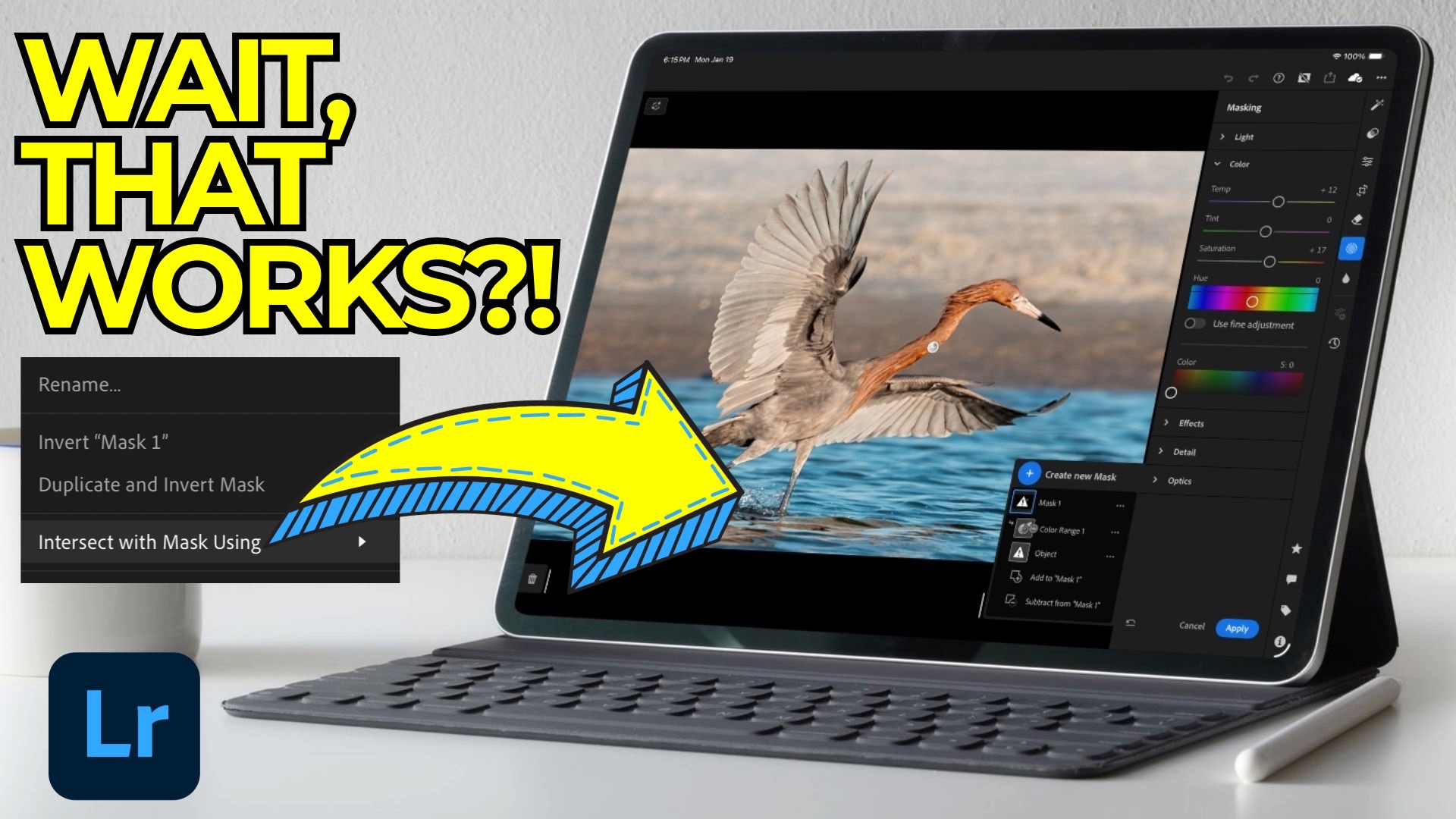
If you’ve watched or read anything from me over the years, you’ve probably heard me repeat the same idea again and again: Lightroom’s masking tools are the most powerful part of the app. Being able to apply edits only where they’re needed is what truly separates Lightroom from many other editors.
But the real power of masking doesn’t come from individual tools like Select Subject or Select Sky. It comes from how masks can interact with each other—by adding, subtracting, and intersecting them. That last one, intersecting, is where things get especially interesting.
One of the most common questions I get is: “Why can’t I use mask intersecting in Lightroom Mobile?”
The short answer: you can—and you always have. It just isn’t labeled as “Intersect.” It takes a couple of extra taps, and once you understand the logic behind it, it becomes second nature.
Let’s break it down.
What Mask Intersecting Actually Means
Intersecting is simply making a selection within a selection.
Instead of editing everything a mask selects, you narrow it down further by combining it with another mask. Conceptually, it works like this:
Intersect = Subtract + Invert
That’s it. Once you understand that formula, the lack of an “Intersect” button in Lightroom Mobile stops being a limitation.
Why Desktop Confuses Mobile Users
In Lightroom Desktop (and Classic), intersecting is obvious. There’s an actual menu item called Intersect With Mask Using…. That makes the feature easy to discover.
In Lightroom Mobile, there’s no such menu item. But the underlying behavior is exactly the same. The tools just expect you to understand how subtracting and inverting masks works together.
Why This Matters
Global edits are powerful. Simple masks are powerful too.
But the real control comes from combining masks.
When you add, subtract, and intersect masks:
-
Your edits become more intentional
-
You avoid over-processing
-
Your photos look more natural and refined
Masking isn’t about complexity for its own sake—it’s about control.
Wrapping It Up
I keep coming back to masking because it rewards understanding. Once you grasp how the tools work together, Lightroom Mobile stops feeling limited and starts feeling incredibly capable.
Intersecting masks may be hidden, but they’re one of the most useful techniques you can learn if you want to push your edits further—without pushing them too far.
If you're eager to dive deeper into Lightroom's masking capabilities, definitely check out my Lightroom Masking Essentials course. It covers everything from the basics to advanced techniques, helping you fully unlock the potential of these powerful editing tools.
The Only Course Designed to Help You Use Lightroom Everywhere!


